Webhooks
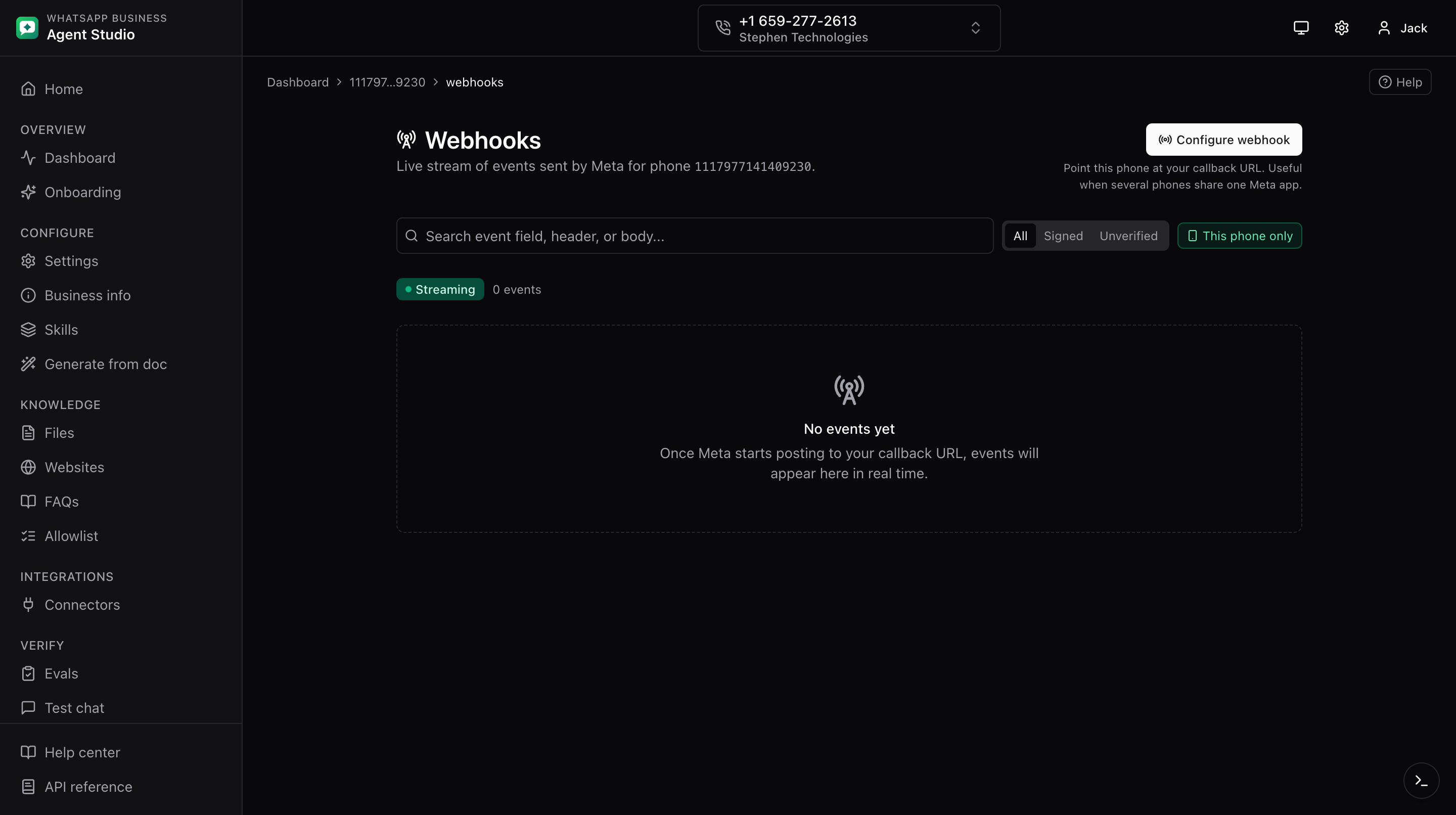
Receive Meta webhook events on a live page, filter by phone number and signature status, and register a per-phone callback URL without leaving the app.
What you'll do
- Point Meta at this app so it starts sending events.
- Register a per-phone callback URL for the current phone, so multiple phones can share one Meta app but route events independently.
- Watch events land in the live UI, filter to only the events for this phone, and inspect their headers and body.
Set up the server
Before Meta can send events, two values need to be set in your server environment:
META_WEBHOOK_VERIFY_TOKEN, a string of your choosing. Meta calls the callback URL once with this value and expects the server to echo back the challenge.META_APP_SECRET, your Meta app's secret. Used to verify the HMAC signature on incoming events. Optional, but events without a valid signature will show as Unverified in the UI.
See Prerequisites for how to set these.
Register a callback URL
You have two ways to tell Meta where to send events.
Option A. App-level (all phones on the app)
- In Meta Business Suite, open your app's Webhooks section.
- Set the callback URL to
https://<your-host>/api/webhooks/meta. - Set the verify token to the same value you put in
META_WEBHOOK_VERIFY_TOKEN. - Save. Meta hits the callback URL to verify.
- Subscribe to the WhatsApp fields you care about (usually messages).
This sends events for every phone attached to the app to the same URL.
Option B. Per-phone (this phone only)
Use this when several phones share one Meta app but you want each phone to point at a different callback URL.
- Open Webhooks from the sidebar for the phone you want to configure.
- Click Configure webhook at the top right.
- The dialog shows the phone number ID (read-only) and a callback URL, prefilled with the current app URL.
- Optionally change the callback URL if you want to send events elsewhere.
- Click Save configuration. The app sends the callback URL to Meta and uses
META_WEBHOOK_VERIFY_TOKENfrom the server as the verify token, so you never need to type or paste it into the browser. - To remove the override and fall back to the app-level URL, open the dialog again and click Clear override.
Watch events in the UI
- Open Webhooks from the sidebar.
- New events stream in live as Meta delivers them. Each card shows a summary, the timestamp, and the phone number ID the event was for.
- This phone only is on by default. It hides events whose phone number does not match the current phone. When there are events for other phones, a small
+N for other phoneslink appears next to the event count so you can widen the filter with one click. - Use the search input to filter across the summary, headers, and body text.
- Use the Signed / Unverified segmented control to filter by signature status.
- Click a row to expand and see the full headers and body.
Good to know
- The verify token is only ever handled on the server. The dialog does not ask for it and no browser code has access to it.
- If
META_APP_SECRETis not set in development, events still land in the UI but are flagged as Unverified. In production, the receiver refuses events with a 500 until the secret is configured; this prevents forged webhooks from populating the ring buffer. - The receiver caps request bodies at 1 MB. Larger payloads get a 413. Meta's real events are a few KB, so this only affects abuse.
- The live SSE stream is filtered server-side to the phone number the browser is currently viewing. Events whose
phone_number_idmatches, plus events that carry nophone_number_idat all (test payloads, non-message changes), are pushed to that tab. Events for other phones never leave the server. - Only a small allowlist of request headers is kept on each stored event:
x-hub-signature-256,x-hub-signature,user-agent,content-type, andx-request-id. Everything else is dropped to keep the ring buffer bounded. - The event history is in-memory. On a server restart or cold start, the list is cleared.
- The per-phone override wins over the app-level callback URL. Meta routes an event to whichever URL is registered on the phone at the moment the event happens.
Troubleshooting
- Configure webhook returns "META_WEBHOOK_VERIFY_TOKEN is not set on the server", add the variable to
.env.local(or the deploy environment) and restart the app, then click Save configuration again. - Meta shows "Callback URL could not be validated", the verify token on the server does not match what Meta expects. Make sure Meta's dashboard is using the same value as
META_WEBHOOK_VERIFY_TOKEN. - All events show "Unverified",
META_APP_SECRETis not set on the server. Set it and restart. - Events for this phone are not appearing but the raw feed has them, check whether This phone only is on and the event's
phone_number_idmatches the current phone. If it does not, either configure the per-phone override or turn the filter off. - Events vanish after a deploy, the buffer is in-memory. Expected behavior after a restart.