Onboarding your first agent
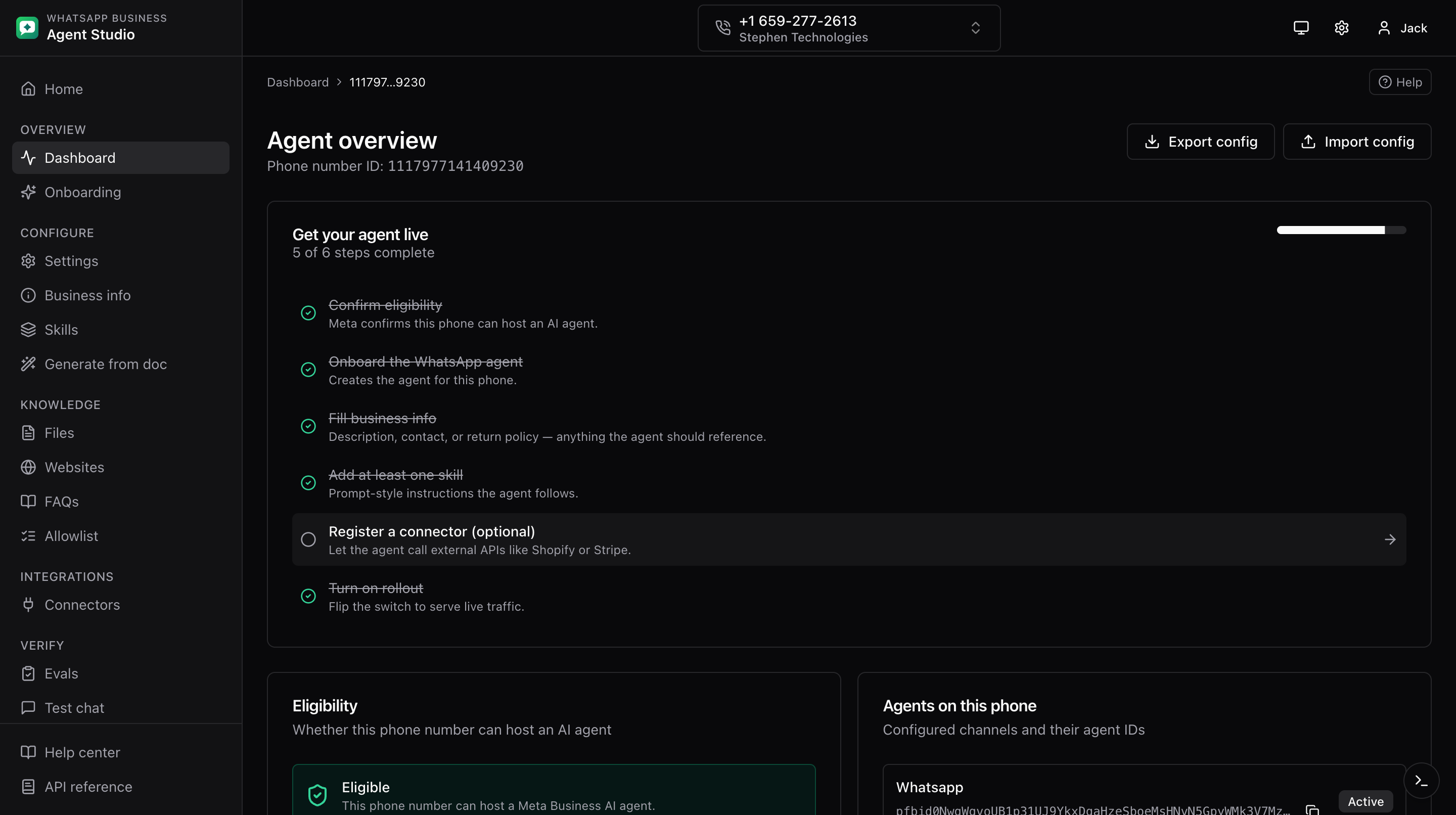
The dashboard for a phone number is the overview page. From here you attach a WhatsApp agent and follow the onboarding checklist.
What you'll do
- Check that the phone is eligible for the Agent Platform.
- Onboard a WhatsApp agent (one per channel, per phone).
- Follow the six-step onboarding checklist until it auto-hides.
Step-by-step
- Open the phone dashboard. The overview shows the phone's eligibility status.
- If eligible, click the footer button labeled Onboard WhatsApp agent. This opens the onboarding page.
- The onboarding page checks whether a WhatsApp agent already exists on this phone. If one does, you see an "already onboarded" card with quick links to Settings and Test. Otherwise you see the Onboard button.
- Click Onboard. The agent is created and you are returned to the overview.
- The footer button on the overview now reads Configure agent instead of Onboard WhatsApp agent.
The onboarding checklist
At the top of the overview, a checklist widget shows six live signals. It auto-hides once all six are done.
The six signals:
- Eligibility, whether Meta considers this phone eligible.
- Agent onboarded, whether a WhatsApp agent exists on this phone.
- Business info filled, at least one of description, email, or return policy is set.
- At least one skill authored.
- At least one connector (marked optional).
- Rollout enabled in Settings.
A progress bar shows overall completion, and the next actionable step is highlighted with a right arrow. Click the step's label to jump to the relevant page.
The one-agent-per-channel rule
A phone number can host at most one agent per channel. Today the app only supports the whatsapp channel, so effectively there is one agent per phone. If you try to onboard again on a phone that already has a WhatsApp agent, you see the "already onboarded" card instead of a new onboard flow.
Good to know
The overview header also has Export config and Import config buttons for the whole agent configuration. See Config export and import.
Need to remove an agent instead of configuring it? See Delete an agent.
Troubleshooting
- Eligibility shows as ineligible, contact your Meta partner. The phone number needs to be granted access to the Business Agent Platform.
- Onboard button does nothing, check your network connection and try again. If the problem persists, open the dev drawer with
Cmd/Ctrl+Shift+Dto see what request failed. - Checklist keeps showing "Rollout enabled" as incomplete, open Settings and turn the rollout toggle on. See Agent settings.