Picking a business and phone
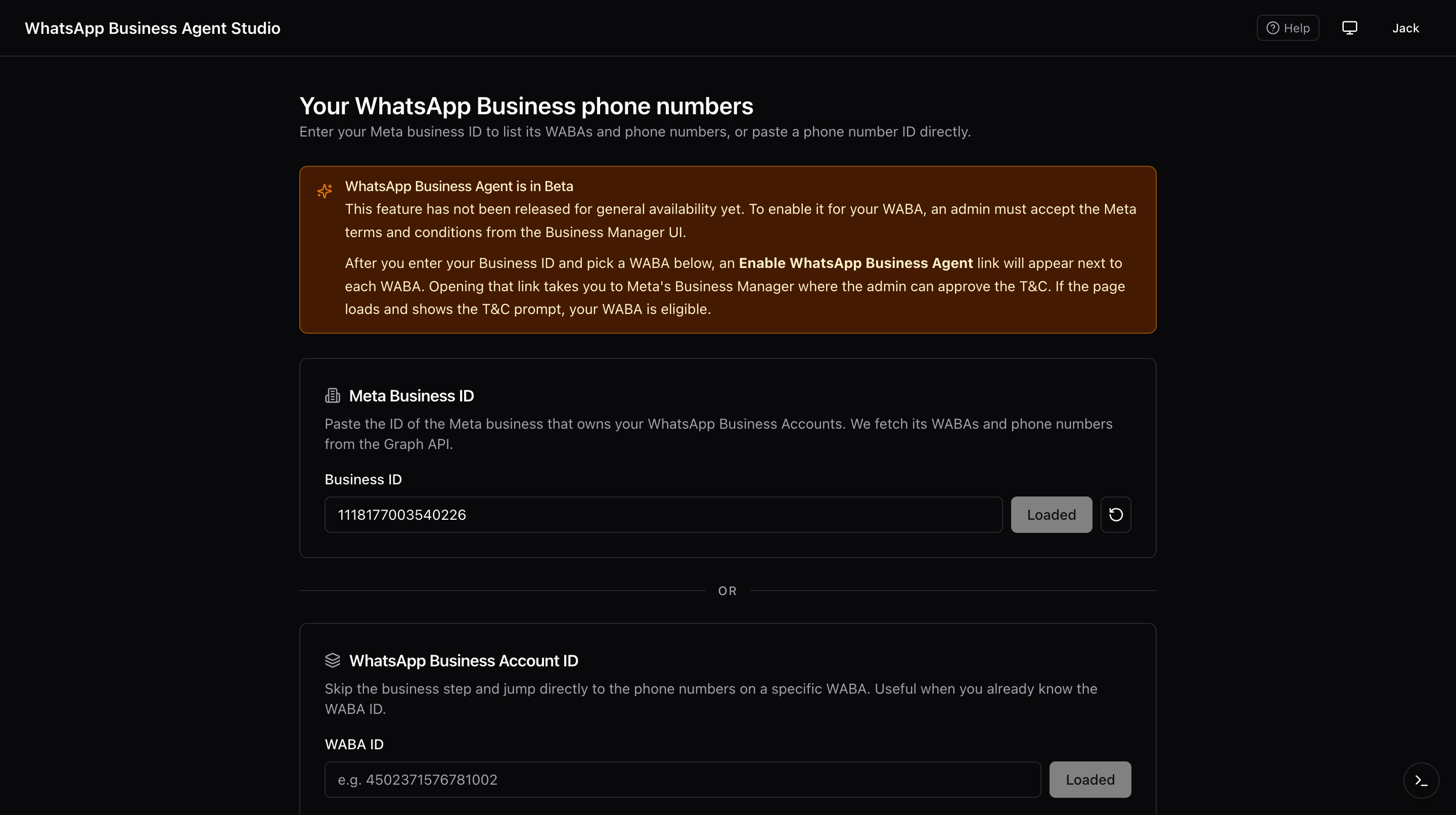
The home page is where you enter a Meta Business ID, browse its WABAs, and click through to a specific phone number.
Beta notice
WhatsApp Business Agent has not been released for general availability yet. It is currently in Beta. Before you can use it on a WABA, an admin must accept the terms and conditions from Meta Business Manager.
Once you have entered your Business ID and the WABAs are loaded, an Enable WhatsApp Business Agent link appears next to each WABA. Opening the link takes the admin to Business Manager at:
https://business.facebook.com/latest/whatsapp_manager/business_ai?business_id={Business ID}&asset_id={WABA ID}
If that page loads and prompts for a T&C acceptance, your WABA is eligible for the Beta. After the admin approves, the rest of this app can configure the agent.
What you'll do
- Paste a Business ID, or paste a WABA ID to jump straight to that WABA's phone numbers.
- Browse WABAs and their phone numbers.
- Confirm the WABA is enrolled in the Beta via the enable link.
- Enter the per-phone dashboard.
Enter a WABA ID directly
If you already know the WABA ID and want to skip the Business step, use the second card labeled WhatsApp Business Account ID. Paste the ID, press Load phones, and the page renders the phone numbers on that WABA. The Enable WhatsApp Business Agent link is only shown when you have also entered your Business ID above, because Meta Business Manager needs both IDs in the URL.
Step-by-step
- Sign in and land on the home page. A yellow banner at the top explains the Beta status.
- Paste a Meta Business ID into the input.
- Click submit. The app remembers this Business ID so you do not have to enter it every time.
- A list of WhatsApp Business Accounts (WABAs) owned by that Business appears.
- For each WABA, click Enable WhatsApp Business Agent to open Business Manager in a new tab. An admin must accept the T&C there. If the page shows a "not eligible" message, that WABA cannot join the Beta yet.
- Each WABA expands to show the phone numbers attached to it. Each row shows the display phone number, the verified name, and the quality rating.
- Click a phone number. You land on the dashboard for that phone.
Why you paste a Business ID instead of picking from a list
The home page does not auto-list every Business your token can see. Instead, you paste one Business ID at a time. This keeps the picker fast and predictable, and it avoids surfacing dozens of unrelated businesses your token may happen to have access to.
If you do not know your Business ID, ask an admin on Meta Business Manager.
Troubleshooting
- WABA list is empty, your token likely lacks the
whatsapp_business_managementscope, or your system user is not assigned to the WABA. Regenerate the token with the correct scopes (see Generating an access token) and assign the system user. - Phone list is empty for a WABA, confirm the WABA has at least one Cloud API phone number attached.
- Clicking a phone bounces you back to the login screen, your session has expired. Sign in again.
Where to go next
- Onboarding your first agent to attach an agent to the phone.