Knowledge, files
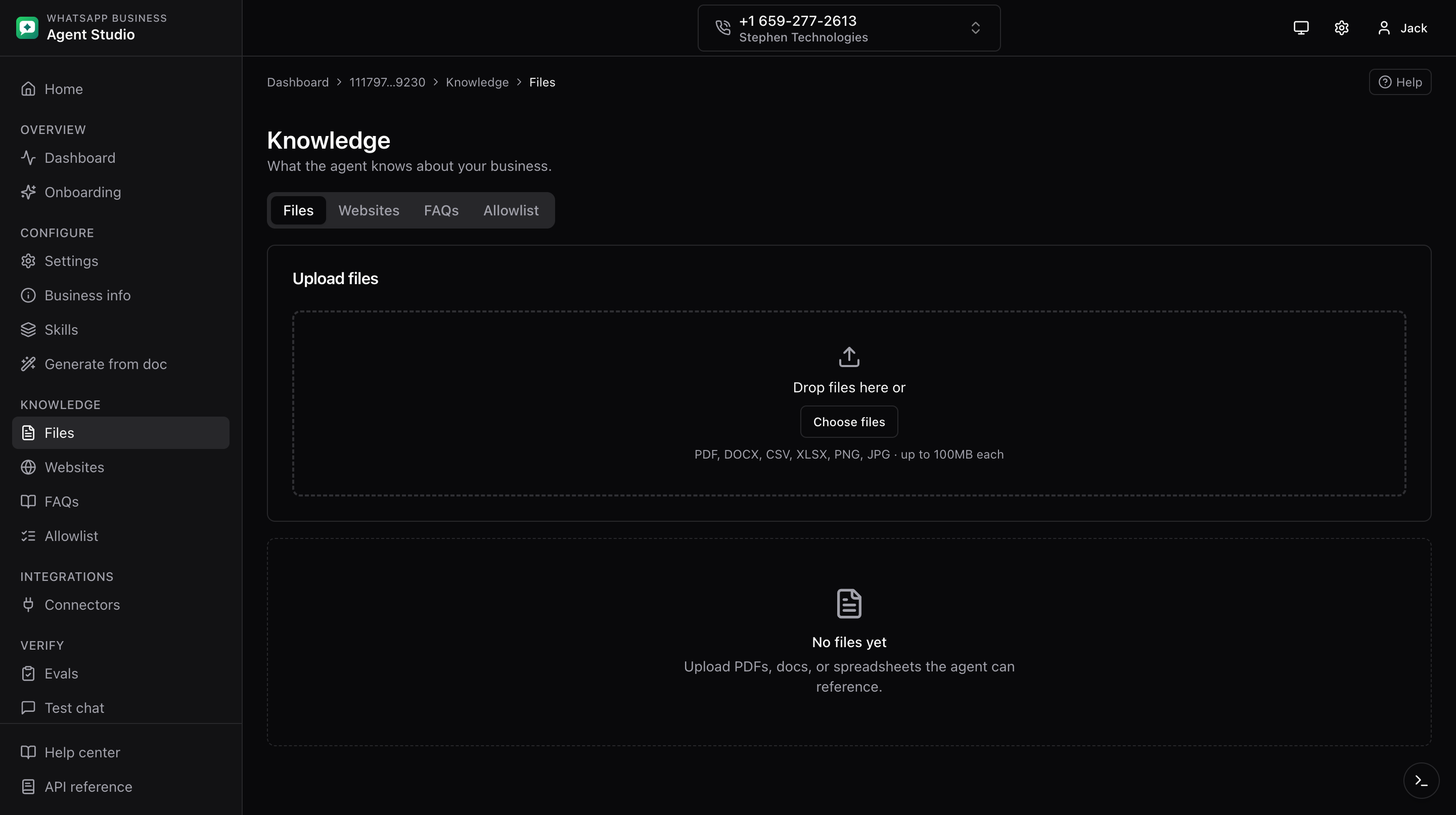
The Files tab under Knowledge lets you upload documents the agent can use as knowledge.
What you'll do
- Upload one or more files with a live progress bar.
- Delete files you no longer want indexed.
Step-by-step
- Open Knowledge from the sidebar. The Files tab is selected by default.
- Click the file input (or drag files onto it).
- Each file uploads independently. A per-file progress bar shows how much has been sent.
- If you need to cancel mid-upload, click the abort button on the row.
- To remove a file, click Delete on its row and confirm.
Supported types and size limits
Meta's file API dictates the accepted content types (typically PDF, DOCX, CSV, and other structured formats) and the per-file size cap. Refer to Meta's Agent Platform documentation for the current limits. If Meta rejects a file, you will see an error on the row.
Good to know
Uploads happen in the browser and stream directly through to Meta. Large files take time; the progress bar is the source of truth.
Troubleshooting
- The upload fails right at the start with a proxy error, an intermediary on your network may be rewriting the request. Try from a different network or contact your admin.
- The progress bar never moves, the file may be small enough to send in a single chunk. Try a larger file to verify the wiring, or refresh the list to confirm the file was uploaded anyway.
- A file uploaded but does not appear in the list, refresh the page.