Agent budget
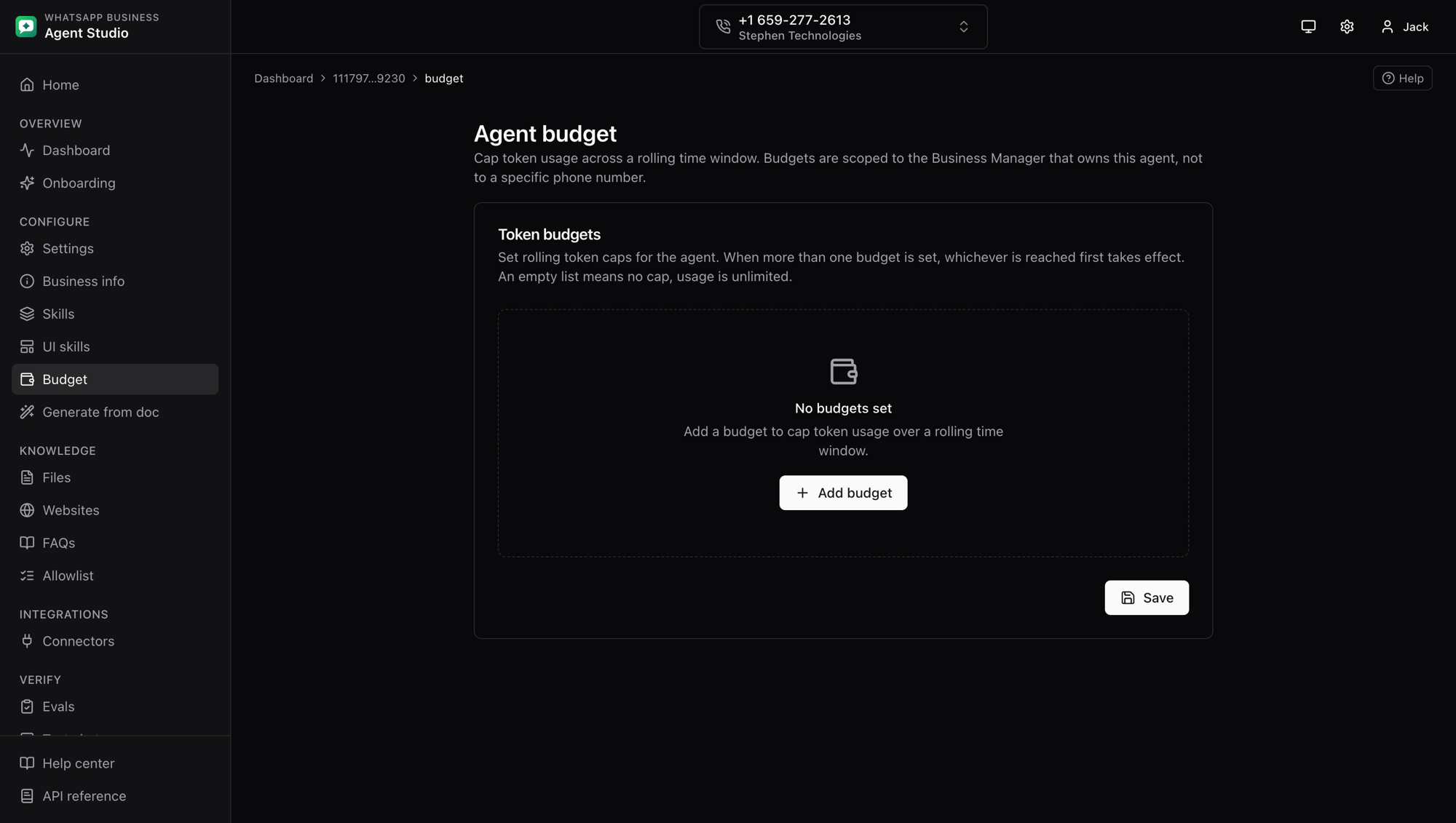
Agent budgets cap token usage over a rolling time window. When more than one budget is set, whichever cap is reached first takes effect. When no budgets are set, usage is unlimited.
Budgets are scoped to the Business Manager that owns the agent, not to a specific phone number. Every phone under that Business Manager shares the same budgets.
What you'll do
- View the current budgets for your Business Manager.
- Add, edit, and remove budgets.
- Clear every budget to return the agent to unlimited usage.
Step-by-step
View the current budgets
- Open Budget from the sidebar under Configure.
- If the page shows a warning that no Business ID is set, go back to Home and enter your Business ID first.
- Existing budgets appear as rows. Each row shows the time window and the max token count.
Add a budget
- Click Add budget in the empty state, or Add another when a row already exists.
- Pick the Time window: 1 day, 7 days, 14 days, or 30 days. Each unit type and time window pair may appear only once.
- Enter the Max tokens, a positive whole number.
- Click Save at the bottom of the card. The full budget set is sent to Meta and the response replaces the local view.
Edit an existing budget
- Change the Time window or Max tokens on the row you want to update.
- Click Save. The row's
budget_idis preserved so the change is applied in place.
Remove a budget
- Click the trash icon on the row.
- Click Save. The row is dropped from the desired state and removed on the server.
Clear every budget
- Remove each row using the trash icon.
- Click Save. The server clears every budget and the agent returns to unlimited usage.
How the cap is enforced
- Usage is totalled over the rolling time window in the timezone of the WhatsApp Business Account.
- With more than one budget, the first cap to be reached takes effect. For example, a 1-day cap of 100k tokens and a 7-day cap of 500k tokens together enforce both a daily and a weekly ceiling.
Troubleshooting
- Duplicate time window error, only one budget per unit type + time window pair is allowed. Merge duplicate rows before saving.
- Save fails with 403 or 401, confirm your access token has
business_managementpermission. Budget is business-scoped and needs that scope. - Old budget still shows after Save, refresh the page. The GET reloads after every save; if the value still looks stale, another tab may have edited it.