Config export and import
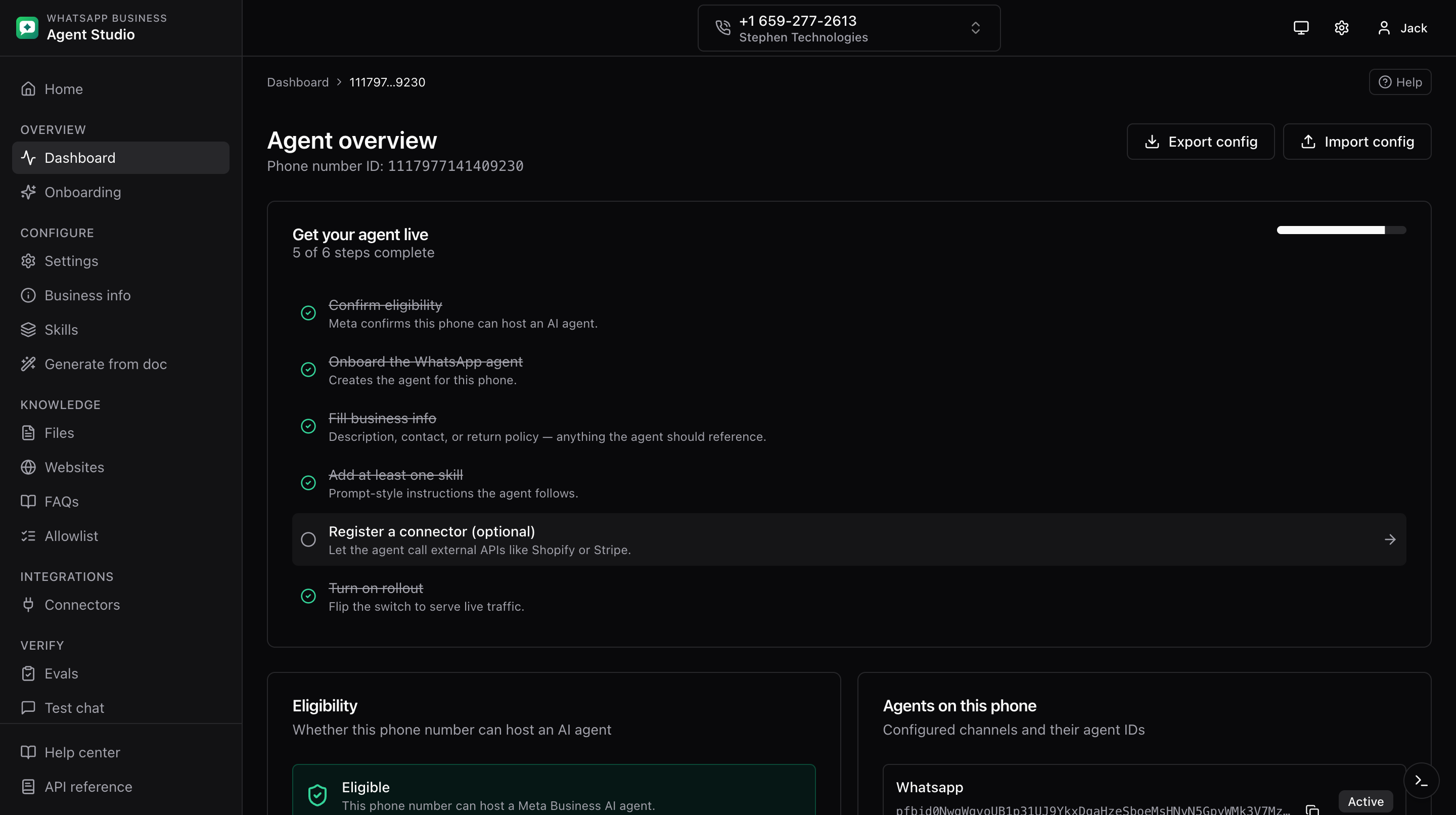
Bundle everything about an agent's configuration into a single JSON file, then reimport it on another phone to promote staging to prod (or to hand a config to a teammate).
What you'll do
- Export a phone's full agent configuration to JSON.
- Optionally include credentials, with a warning.
- Import a JSON bundle onto another phone with live progress.
Where the buttons live
Both Export config and Import config sit in the header of the phone dashboard (the overview page).
What is included
Export bundles:
- Settings, business info, skills, websites, FAQs, allowlist.
- Files, as metadata only (binaries are not portable across phones).
- Every connector plus its tools.
Credential handling
- Default, credentials are stripped from the export (API key values, OAuth client secrets, mTLS certificates).
- Opt-in, tick Include credentials to keep them in the file. Two extra controls appear:
- A Passphrase field. If you set one, the download is encrypted with AES-GCM (PBKDF2-SHA256, 200k iterations, per-file salt and IV) and saved as
.enc.json. You will need the same passphrase to import it. - If you leave the passphrase blank, a red banner asks you to explicitly acknowledge that the file will contain plaintext secrets. The Download button stays disabled until you tick the checkbox.
- A Passphrase field. If you set one, the download is encrypted with AES-GCM (PBKDF2-SHA256, 200k iterations, per-file salt and IV) and saved as
Filename
Exports download with a filename like:
agent-config-<entityId>-<yyyy-mm-dd>.json       # plaintext
agent-config-<entityId>-<yyyy-mm-dd>.enc.json   # passphrase-protected
Step-by-step, export
- Open the phone dashboard.
- Click Export config in the header.
- Choose whether to include credentials (off by default).
- Confirm to download the JSON.
Step-by-step, import
- On the destination phone's dashboard, click Import config.
- Upload the JSON file. Both plain
.jsonand encrypted.enc.jsonfiles are accepted. If the file is encrypted, the dialog prompts for the passphrase before it reads the contents. - The dialog validates the shape against a strict schema. If any record fails validation, the dialog names the failing field and record and blocks the import.
- Review the preview counts per resource (skills, FAQs, connectors, etc.).
- Click Import. A progress indicator shows each stage as it runs:
- Business info
- Skills
- Websites
- FAQs
- Allowlist
- Connectors
- Tools
- If credentials were not included in the bundle, an amber alert reminds you that connectors were created but their auth still needs to be filled in. See Connector auth rotation.
- If any list failed to fetch when the bundle was exported, the preview shows a Partial export warning. Missing sections are skipped during import.
After the import finishes, every resource cache under the entity is invalidated so the just-created skills, connectors, knowledge, and allowlist entries show up without a hard reload.
Good to know
- Files are not moved across phones. Re-upload knowledge files on the destination phone if you need them there.
- The import is sequential, not transactional. If a stage fails partway, earlier stages have already been applied. The dialog surfaces which stage failed so you can decide whether to rerun the failing stage or roll back manually.
Troubleshooting
- Bundle rejected as invalid, the file may be from a much older version of the app. Regenerate the export from a current version.
- Import stalls partway, open the dev drawer to see which call failed. Fix the underlying issue and rerun the import (already-created items will be duplicated; delete them first if you need a clean slate).
- Imported connectors do not work, credentials were stripped. Rotate auth on each connector.