AI provider settings
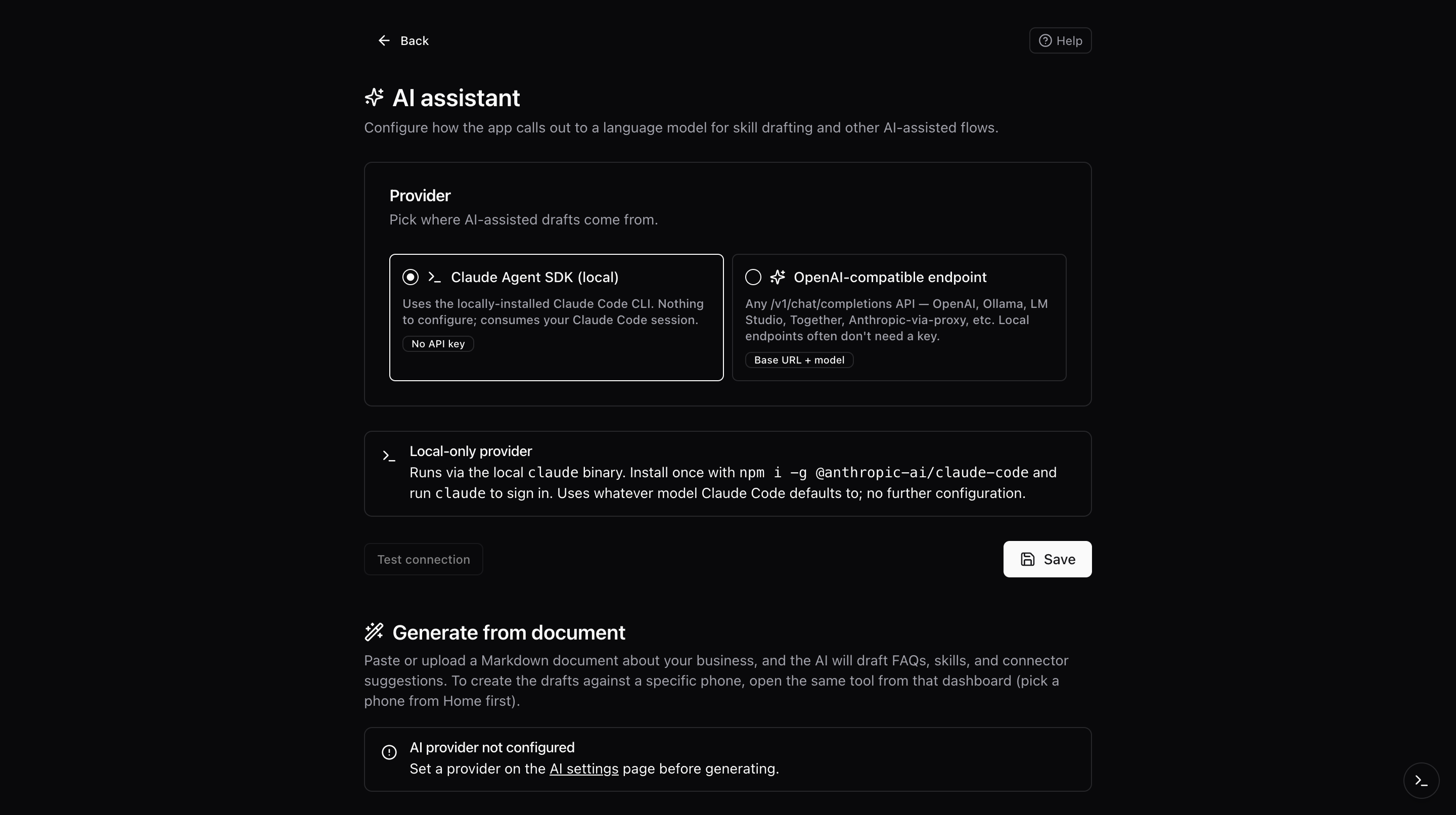
The AI provider settings page picks which AI powers Draft with AI on the Skills page and Generate from document. Two options are supported: the local Claude Agent SDK, or any OpenAI-compatible endpoint.
What you'll do
- Choose Claude Agent SDK or an OpenAI-compatible provider.
- Configure the base URL, model, and API key.
- Test the connection.
The two providers
Claude Agent SDK
- Uses the local
claudebinary already installed and signed in on the server. - No API key is required.
- Best for teams who already run Claude locally and want zero extra configuration.
OpenAI-compatible
- Works with any endpoint that speaks the OpenAI Chat Completions API. That includes OpenAI itself, Ollama, LM Studio, Together, and Anthropic-via-proxy setups.
- Configure the base URL, the model name, and an API key if the endpoint requires one.
Step-by-step
- Open AI provider settings from the top-level Settings section.
- Pick a provider using the radio group at the top.
- Fill in the fields for the chosen provider:
- Base URL (OpenAI-compatible only).
- Model.
- API key (optional; leave blank for endpoints that do not require it).
- Click Test connection. A success message means the app can reach the endpoint and get a valid response.
- (OpenAI-compatible only) Click Load models to fetch the model list from your endpoint. Pick one and it fills the Model field.
- Click Save.
Good to know
- Your API key stays on the server. The browser only sees whether a key is configured, not the value.
- Two features depend on this configuration: Draft with AI on the New skill page, and Generate from document. Both will refuse to run with a "not configured" message if you have not saved a provider yet.
Troubleshooting
- Claude is unavailable, "not installed", the
claudebinary is not present on the server. Install it or switch to an OpenAI-compatible provider. - Claude is unavailable, "authentication needed", sign in with
claudeon the server (usually by running it interactively once). - OpenAI-compatible test fails with a network error, the base URL cannot be reached. Verify the URL and any firewalls between the app and the endpoint.
- "Invalid AI endpoint, cannot reach private, loopback, or link-local hosts", the app blocks AI base URLs that resolve to loopback, private, link-local, or cloud metadata addresses to prevent SSRF. In development, plain
http://is permitted so Ollama and LM Studio still work; production requireshttps://and a publicly resolvable host. - The Save button stays greyed out even though I picked a provider, edit any field or re-select the radio to mark the form as dirty, then Save.
- "AI not configured" banner won't clear after saving, refresh the page.