Scenarios, save and replay
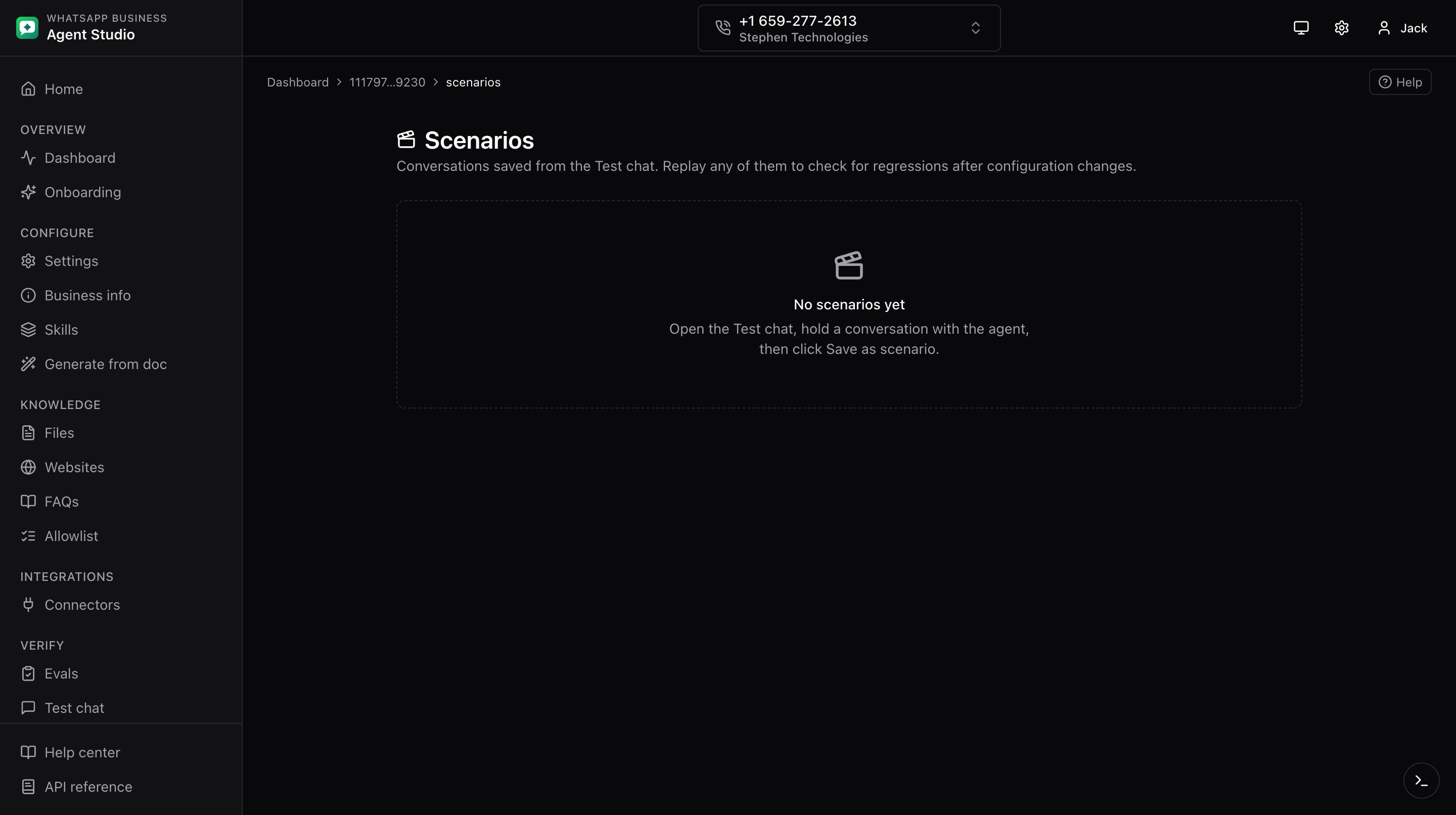
Scenarios let you snapshot a Test-chat conversation and replay it later against the live agent. It is a simple regression harness: you record a "known good" conversation, then re-run it whenever you change skills or knowledge to see whether the agent still answers the same way.
What you'll do
- Save a chat conversation as a scenario.
- List and manage saved scenarios for the current phone.
- Replay a scenario and compare saved vs current responses side by side.
Where scenarios are stored
Scenarios are stored in your browser. They are per-browser and per-phone. Clearing your browser storage will lose them. If you rely on scenarios, keep them in a browser profile you do not clean up.
Step-by-step
Save
- On the Test page, run the conversation you want to capture.
- Click Save as scenario.
- Give the scenario a name, and optional notes.
- Click Save.
List
- Open Scenarios from the sidebar.
- Each row shows the name, notes, turn count, and timestamp, with Replay and Delete actions.
Replay
- Click Replay on a scenario row. A dialog opens.
- The dialog reruns each user turn through the live agent.
- For every turn you see the saved and current agent responses side by side.
- A per-turn badge shows one of match, differs, or error.
Good to know
Scenarios are the fastest way to catch regressions after editing skills, knowledge, or connectors. Save a handful of representative conversations early and replay them after every meaningful change.
Troubleshooting
- Scenarios missing after a browser reset, they are stored in browser storage. Re-record the ones you need.
- All turns show "differs", the agent's behavior has genuinely changed. Compare responses side by side and decide whether to update the saved scenario or roll back the change that caused the drift.
- "Error" badge on a turn, the underlying request failed. Check the dev drawer for the failing call.