Introduction
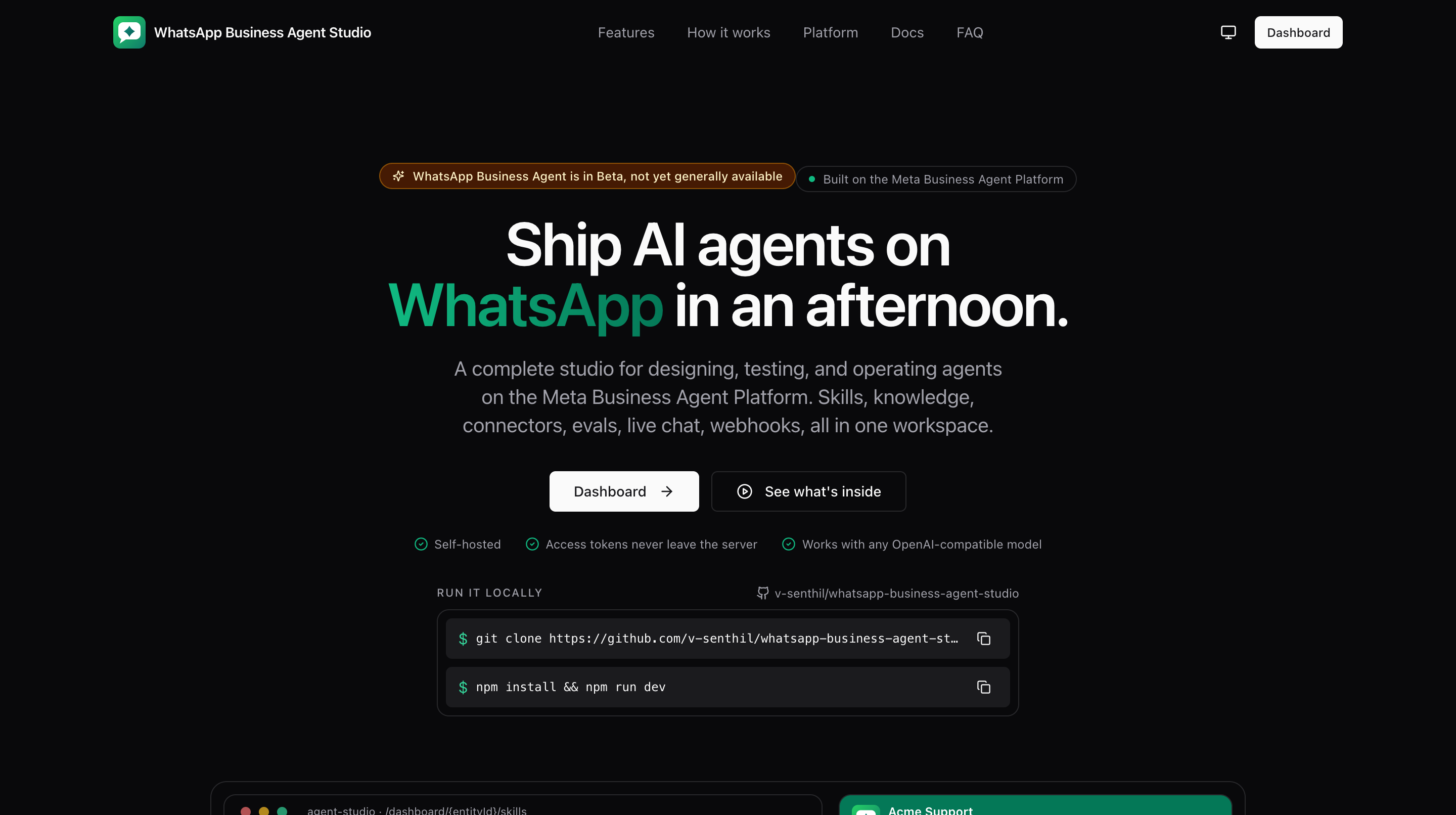
WhatsApp Business Agent Studio is a visual builder for WhatsApp Business AI agents. Instead of stitching together raw API calls, you configure your agent through a friendly UI: onboard a phone number, add skills and knowledge, connect external APIs, test conversations, and ship.
What you'll do
- Understand who the product is for and what it solves.
- Learn the core concepts you will use throughout the app.
Who it's for
- Product and support teams who own a WhatsApp Business number and want to ship an AI agent without wiring API calls by hand.
- Solutions engineers who need to promote agent configurations across staging and production phone numbers.
- Anyone who wants a live playground, exportable configs, and repeatable regression tests for their WhatsApp agent.
What problems it solves
- No need to memorize dozens of Meta endpoints. Every operation has a UI.
- Your access token stays private. It is kept on our servers and is never sent to your browser.
- Full CRUD for skills, knowledge, connectors, tools, and eval runs in one place.
- Regression testing via saved scenarios and eval runs, all against the live agent.
Core concepts
- WABA (WhatsApp Business Account), the container for one or more phone numbers, owned by a Meta Business.
- Phone number, the WhatsApp Cloud API line. Every agent is scoped to a single phone number.
- Agent, the AI configuration attached to a phone number. A phone can host at most one agent per channel; today only the
whatsappchannel is wired. - Skill, a free-form instruction the model follows in a specific scenario, with a title, description, and body.
- Connector, an external API the agent can call. Auth is one of API key, OAuth client credentials, or mTLS.
- Tool, an operation on a connector: an HTTP method, path, and parameters the model uses at runtime.
- Knowledge, files, websites, FAQs, and an allowlist of consumer phone numbers.
- Eval, a batch of Meta-provided test cases you run against the agent to score responses.
Finding help while you work
Every page in the studio has a Help link in its top-right corner. Clicking it opens the matching article from this help center in a new tab, so you can read the guide alongside the page you're working on. If you don't see a Help link, the page is a lightweight single-purpose screen (like the marketing landing page).
Inside the help center itself, a search box at the top of every page searches article titles, descriptions, section names, and body text. Press / from anywhere in the help center to jump straight into it, and Esc to clear. Results appear as you type with the section chip on the right and the matched snippet below.
Where to go next
- Prerequisites to make sure your Meta setup is ready.
- Generating an access token to mint the token you will paste on the login screen.