Generate from document
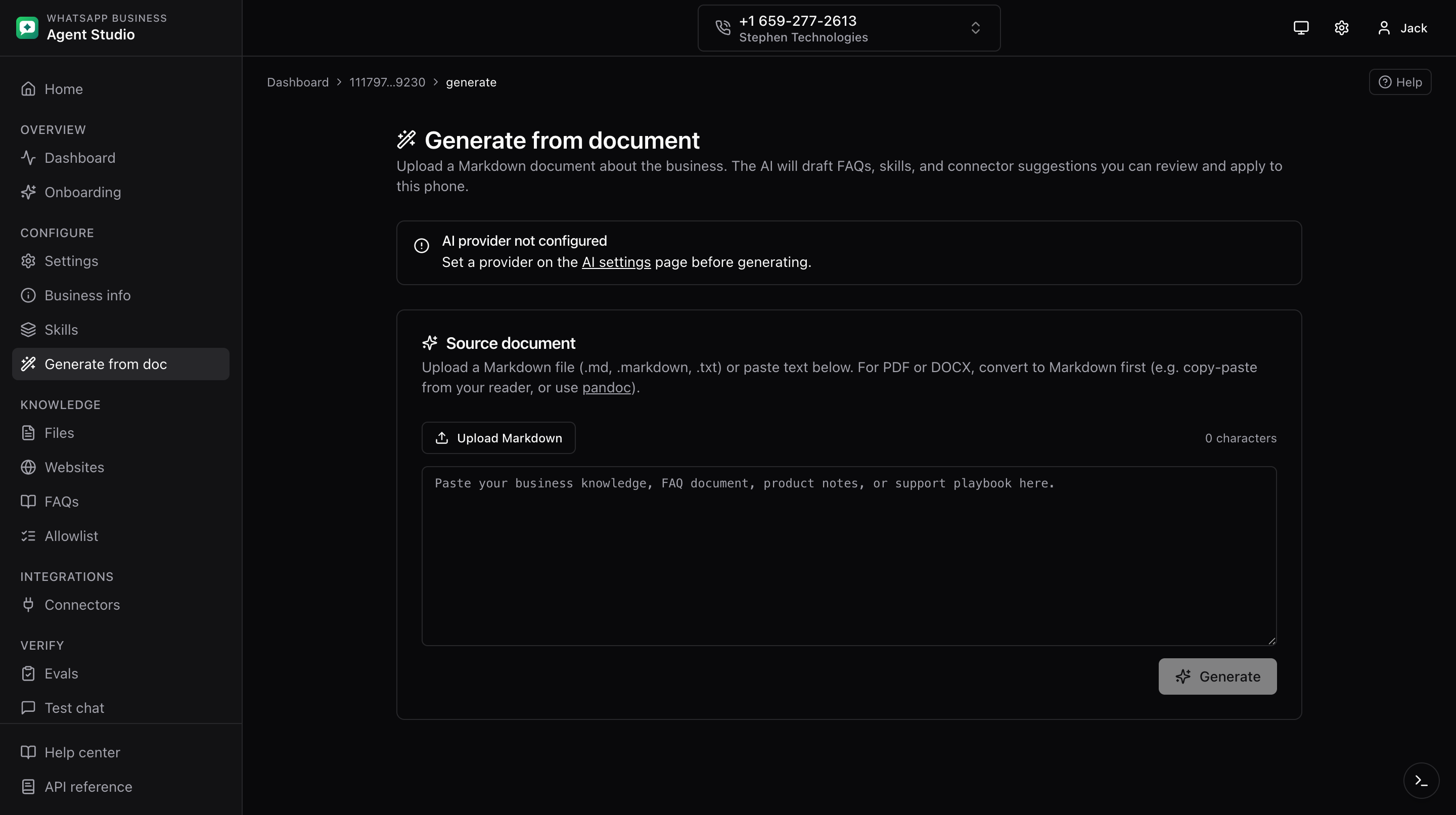
Paste or upload a Markdown or plain-text document about your business, and the AI drafts FAQs, skills, and connector suggestions in one shot.
What you'll do
- Draft FAQs, skills, and connector suggestions from a document.
- Preview the results and either copy the JSON or apply items directly to the agent.
Two places, two modes
- Utility mode, on the AI provider settings page. No target phone. You see preview cards and a Copy JSON button. Useful for one-off exploration.
- Apply mode, on the Generate from doc page under Configure (a sidebar item with a wand icon). Scoped to the current phone. You see the same preview plus per-item checkboxes and a button to create the selected items on this phone.
Step-by-step
Prepare input
- Supported types:
.md,.markdown,.txt. - Maximum size: 2 MB.
- PDF and DOCX are not supported. Convert to Markdown first with a tool like pandoc.
Generate
- Open the appropriate page (utility or apply).
- Paste text into the textarea or upload a file.
- Click Generate. The AI works on the input and returns a bundle of suggested FAQs, skills, and connectors.
Preview and apply
- Utility mode, click Copy JSON to grab the bundle for use elsewhere.
- Apply mode:
- Tick the checkboxes next to the FAQ and skill items you want to create.
- Click Create N selected at the bottom. Each item is created one after another; you see progress.
- Connector suggestions appear as cards with a link. If the AI matched a known template, the link takes you to the New connector page with that template selected. Otherwise the link takes you to a blank New connector page for freeform setup.
Good to know
- Long documents are automatically clipped at 40,000 characters. When that happens, the preview shows a Long document truncated banner so you know some content near the end may be missing. Focus your input on the most useful sections.
- Incomplete AI suggestions are filtered out before you see them, so the preview only shows items with enough information.
- This feature requires an AI provider to be configured. See AI provider settings.
Troubleshooting
- "AI not configured", open the AI provider settings page and configure a provider.
- Nothing was generated, your document may be too short or too vague. Add concrete facts the AI can extract.
- Wrong connector suggestions, connector matches are based on a built-in catalog. Unknown vendors fall through as freeform suggestions with a blank New connector link, which you can fill in yourself.
- PDF or DOCX rejected, convert to Markdown or plain text first.