Signing in
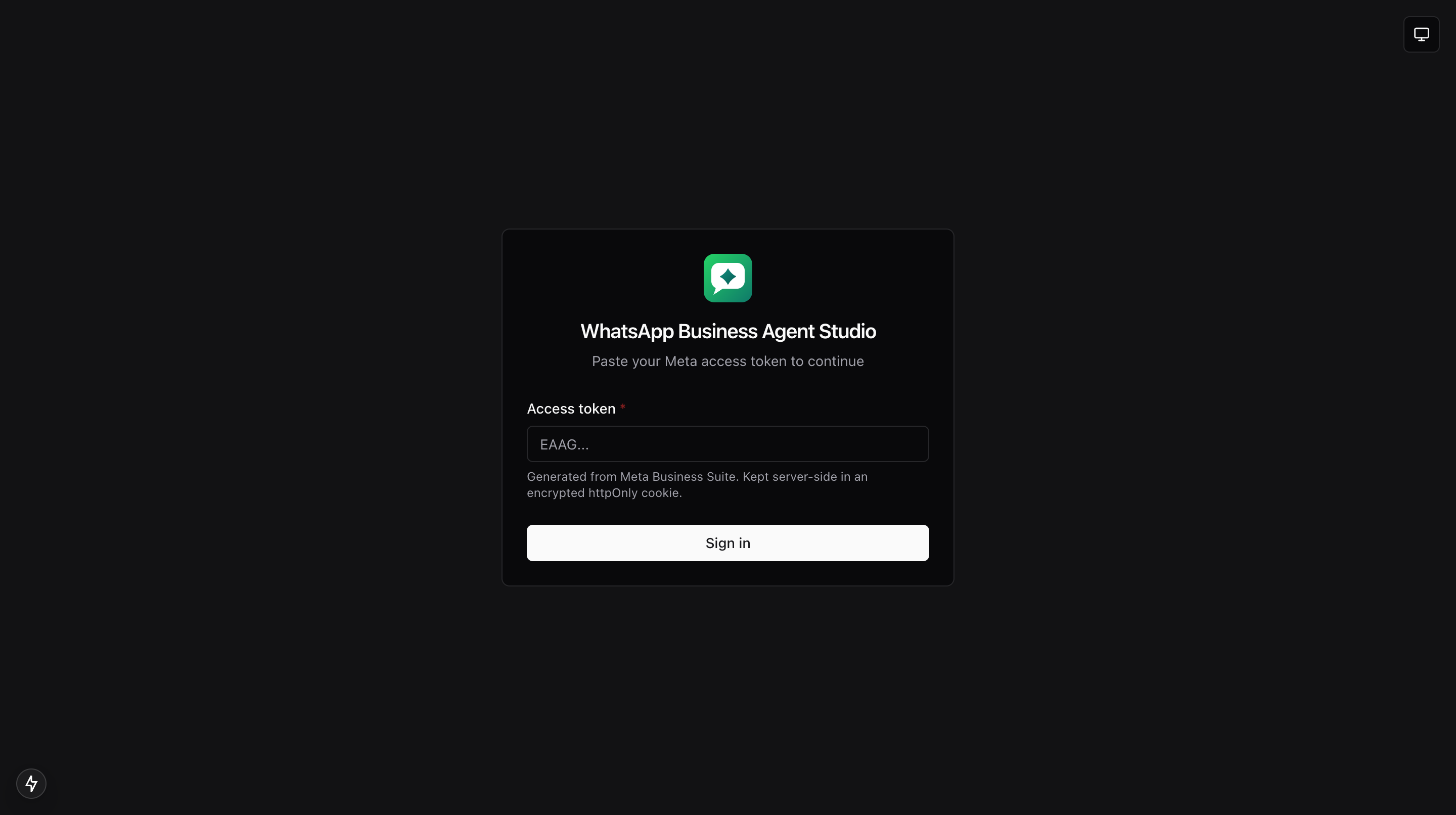
The login screen is a single field: your Meta access token. Everything else in the app is behind sign-in.
What you'll do
- Sign in with your access token.
- Toggle Light, Dark, or System theme from the login page.
- Sign out when you are done.
Step-by-step
- Open the app. If you are not signed in, you land on the login screen automatically.
- Paste your access token into the input.
- Click Sign in. The app verifies the token with Meta before letting you in.
- On success you are redirected to the home page. On failure you see a message with the reason.
- Use the Theme toggle in the corner to switch between Light, Dark, and System modes. Your preference is remembered.
Where the token lives
- The token is stored in an encrypted session on the server, not in your browser.
- Only the server can read it, and it uses it to make Meta API calls on your behalf.
- If someone opens your browser dev tools they will not find the token.
Signing out
- Open the account menu in the top-right of the dashboard header.
- Choose Sign out. This clears your session and returns you to the login screen.
Troubleshooting
- You land back on the login screen after signing in successfully, your session was set with a different secret than the running server. If you host the app yourself, restart it with a consistent
SESSION_SECRET. - "Invalid token" message, make sure you pasted a user or system-user access token, not an app secret. See Generating an access token.
- Blank page after login, hard-refresh the browser. The theme system sometimes needs one extra tick to hydrate.