Read-only mode
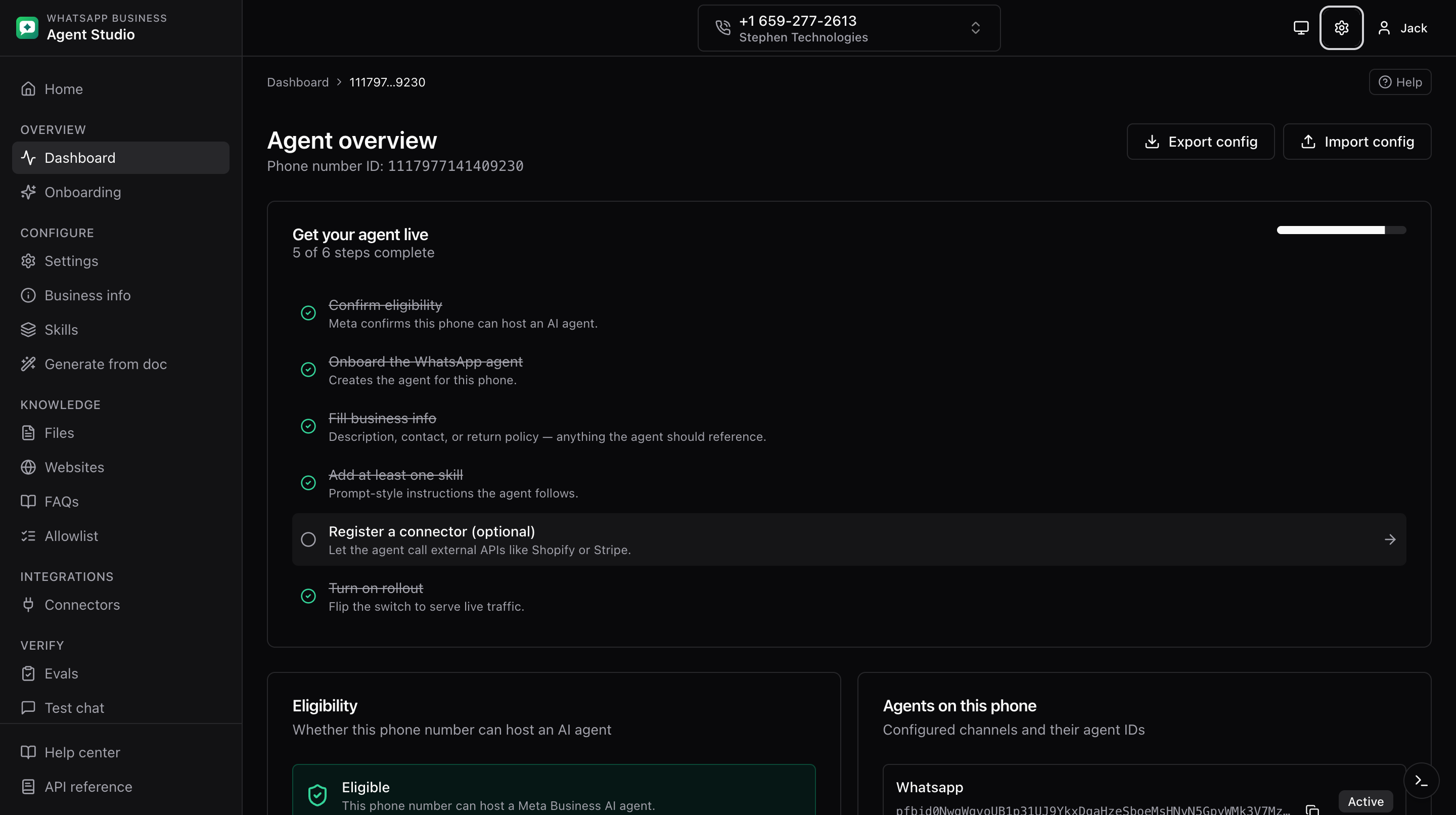
Toggle Read-only mode to block every write action against the Meta Agent Platform. Useful for demos, shared browsers, and shift handoffs where you want to browse the configuration without risking a mistake.
What you'll do
- Turn read-only on and off from the account menu.
- Understand what is and isn't blocked.
Step-by-step
- Click the account menu in the top-right of the dashboard header.
- Toggle Read-only mode on.
- A banner appears between the header and breadcrumbs, reminding you that writes are blocked.
- To turn it off, click Turn off on the banner, or toggle it back in the account menu.
What is blocked
- Any write action (create, update, delete) against the Meta Agent Platform: saving settings, creating skills, uploading files, rotating auth, running tools, and so on.
- Configuring the phone-scoped webhook override (Webhooks > Configure).
- File uploads: the uploader still uses raw XHR (for progress reporting) but now checks the read-only flag before opening the connection.
- When you try one of these, the app shows a small "read-only" message instead of firing the request.
What is not blocked
- Reading. Everything you already see on screen keeps working.
- Test chat and playground requests that only read data.
- Sign in and sign out.
- Toggling read-only itself.
Good to know
Read-only is a client-side guard designed to prevent accidents. It is not a compliance mechanism; a determined user can turn it off from the account menu at any time.
Troubleshooting
- A mutation still fires despite the toggle, refresh the page and try again. If the problem persists, note the action you tried and report the issue.
- The banner will not go away, refresh the page. Your session may have gotten out of sync with the UI.