UI skills
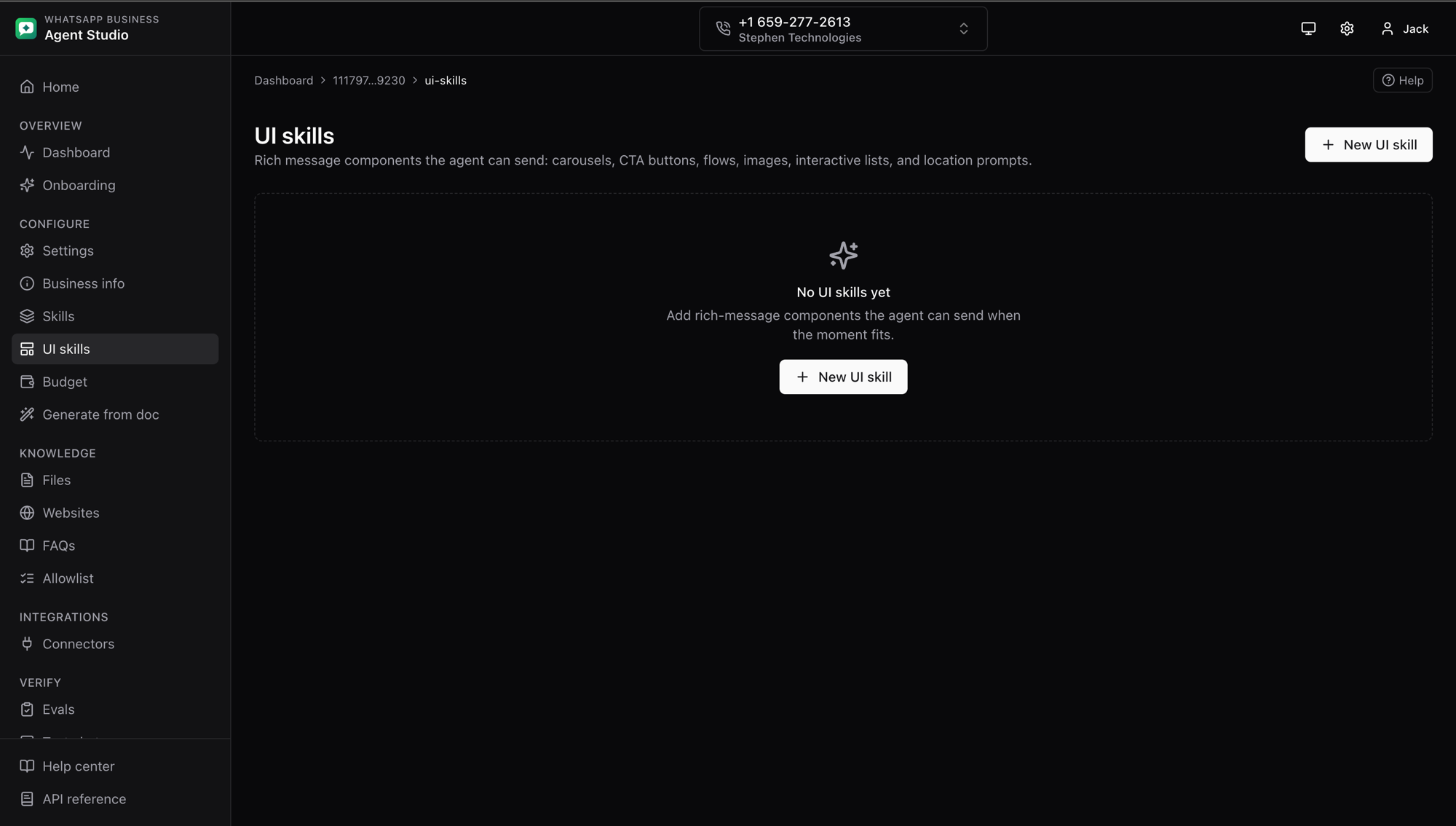
UI skills tell the agent which rich message components it can send to the customer, and when to send each one. Where regular Skills are free-form instructions, UI skills are structured entries that map to a WhatsApp component type: carousel, call-to-action button, flow, image, interactive list, location, or location request.
What you'll do
- Create, edit, and delete UI skills.
- Set an instruction that tells the agent when to fire each one.
- Enable or disable a UI skill without deleting it.
- Attach a published WhatsApp Flow when the component type is
flow.
Step-by-step
Create a UI skill
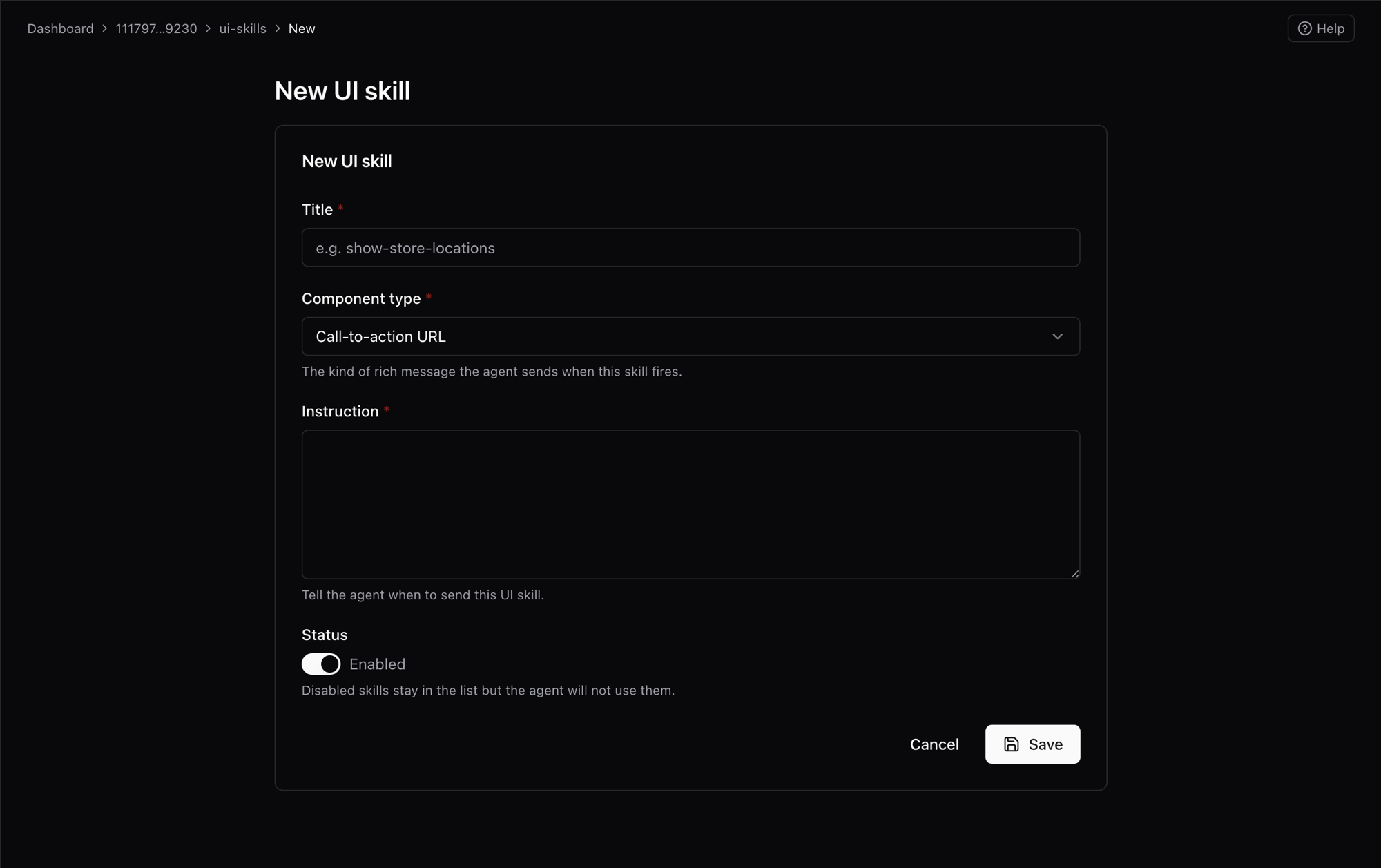
- Open UI skills from the sidebar under Configure.
- Click New UI skill in the top-right.
- Fill in the form:
- Title, a short human-readable name (for example
show-store-locations). - Component type, the kind of rich message. Pick from carousel (quick reply), carousel (URL), call-to-action URL, flow, image, interactive list, location, or location request.
- Flow ID, only shown when component type is Flow. Paste the ID of the published WhatsApp Flow to trigger.
- Instruction, one to three sentences telling the agent when to send this UI skill. Be specific about the trigger.
- Status, toggle enabled or disabled. Disabled UI skills remain in the list but the agent will not use them.
- Title, a short human-readable name (for example
- Click Save. You return to the list and the new card appears.
Edit or delete
- On the UI skills list, click a card.
- Update Title, Instruction, or Status and click Save. Note that Component type and Flow ID are fixed after creation.
- To remove a UI skill, click Delete on its detail page and confirm.
Choosing a component type
- Carousel (quick reply), a set of cards, each with a quick-reply button. Good for browsing options that the agent responds to inline.
- Carousel (URL), a set of cards, each linking to an external URL. Good for product catalogs.
- Call-to-action URL, a single message with a link button. Good for one-off deep links.
- Flow, launches a published WhatsApp Flow. Requires the Flow ID. Only enable this once the Flow is published in Meta.
- Image, a single image message. Good for product hero shots or receipts.
- Interactive list, a menu of options rendered as a native WhatsApp list. Good for structured triage.
- Location, a static location card with coordinates. Good for showing a store or pickup point.
- Location request, asks the customer to share their location. Good for delivery-address collection.
Troubleshooting
- Cannot enable a Flow UI skill, the corresponding Flow must be published in Meta first. Publish it, then set status to Enabled.
- Cards render but the agent never picks one, tighten the Instruction with a concrete trigger such as "when the customer asks for store locations near a city".
- A change to the flow itself is not reflected, UI skills reference the Flow by ID. Any change to the Flow content is picked up automatically. Only the ID is stored here.