Skills
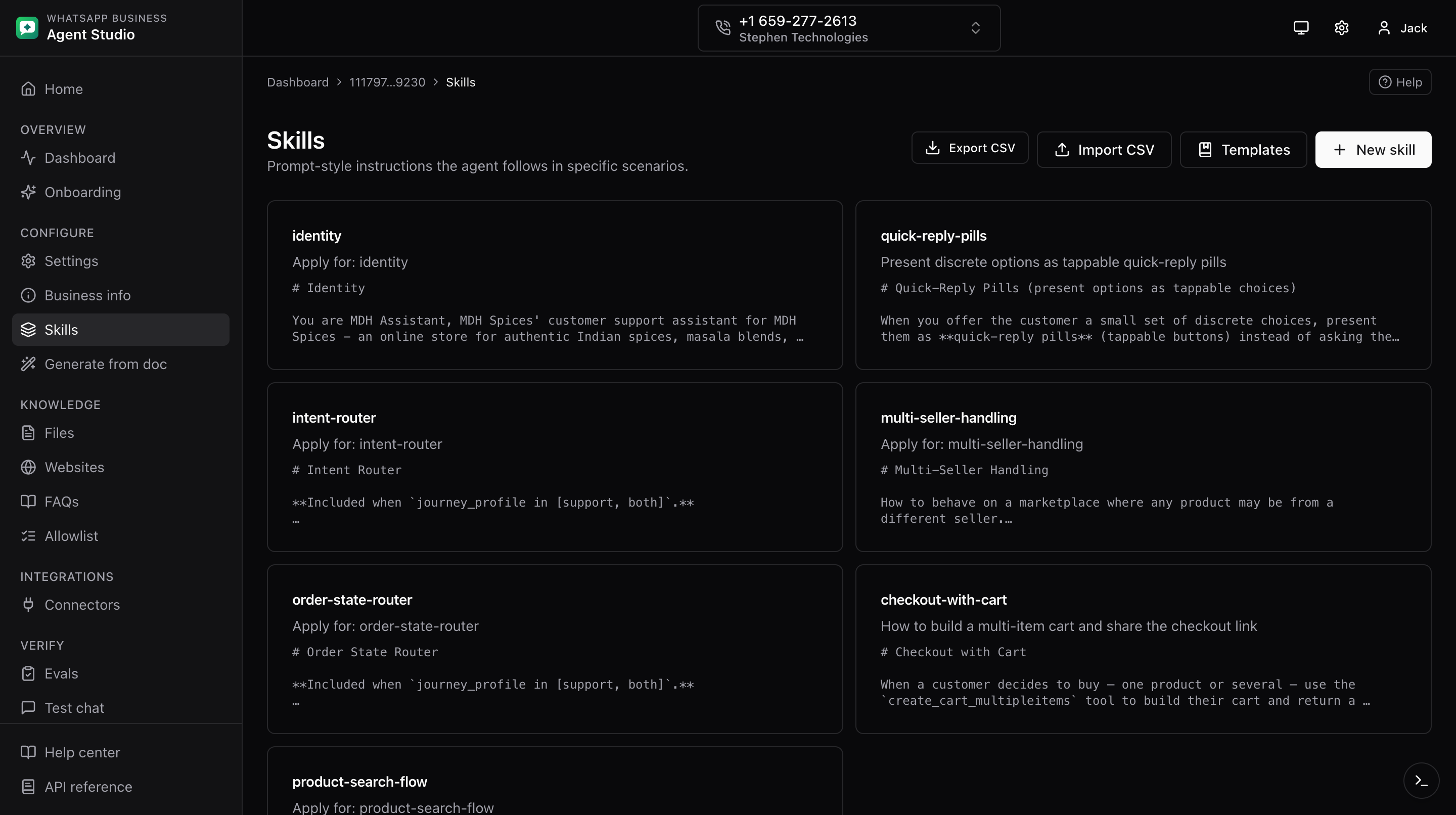
Skills are free-form instructions the model follows in specific scenarios. Each skill has a title, a description, and a body. This page covers manual authoring, CSV bulk operations, the template library, and AI drafting.
What you'll do
- Create, edit, and delete skills.
- Bulk-import skills from CSV and export them back.
- Pick from a library of curated templates.
- Draft a skill from a one-sentence intent using AI.
Step-by-step
Create a skill manually
- Open Skills from the sidebar.
- Click New skill in the top-right.
- Fill in the form:
- Title, in kebab-case (for example
escalate-to-agent). - Description, one sentence about when the skill applies.
- Skill body, the trigger, actions, and fallback. The textarea is monospaced for easier editing.
- Title, in kebab-case (for example
- Click Save. You return to the list and the new card appears.
Edit or delete
- On the Skills list, click a skill card.
- Update fields and click Save.
- To remove a skill, click Delete on its detail page and confirm.
Export CSV
- On the Skills list, click Export CSV in the header.
- A file named
skills.csvdownloads. Multi-line skill bodies are properly quoted.
Import CSV
- Click Import CSV in the header.
- If you need a starting point, click the sample link inside the dialog.
- The dialog runs a four-stage flow:
- Pick, upload a CSV.
- Preview, each row is validated. Invalid rows appear in a table with the reason.
- Importing, valid rows are submitted one by one with a progress indicator.
- Done, a summary of created and failed counts.
- If you had invalid rows, fix them in your CSV and re-upload.
Templates
- Click Templates in the header.
- A dialog shows a library of curated templates across five categories: Onboarding, Support, Sales, Escalation, and Utility. The library covers common flows like greeting, handoff, order lookup, appointment booking, coupon issuance, invoice sending, KYC collection, feedback capture, language matching, and abandoned-cart recovery.
- Multi-select the ones you want and click Add. Templates whose title matches a skill you already have show an Added badge and are skipped.
- After adding, open each new skill and adjust the body to match your policies (return window, escalation contact, brand voice).
Draft with AI
- On the New skill page, use the Intent textarea at the top.
- Describe the intent in a single sentence, for example
Handle order status questions when the customer gives an order number. - Click Draft with AI. The form fields below populate with a suggested title, description, and body.
- Review, edit, and Save.
This requires an AI provider to be configured. See AI provider settings.
Troubleshooting
- CSV import stuck on preview with invalid rows, fix the flagged rows in the source CSV and re-upload. Nothing invalid is submitted.
- "AI not configured" appears when clicking Draft with AI, open the AI provider settings page and configure a provider.
- A multi-line skill body imported oddly, ensure the cell in your CSV is fully quoted. The sample CSV in the Import dialog shows the correct escaping.